
How to Change Your Event Image
Already uploaded an image to your event and want to swap it out? You can replace your main event image at any time from the event editor. You can pull the new image from your computer, a link on your website, or a cloud service like Google Drive or Dropbox.
How to change your event image
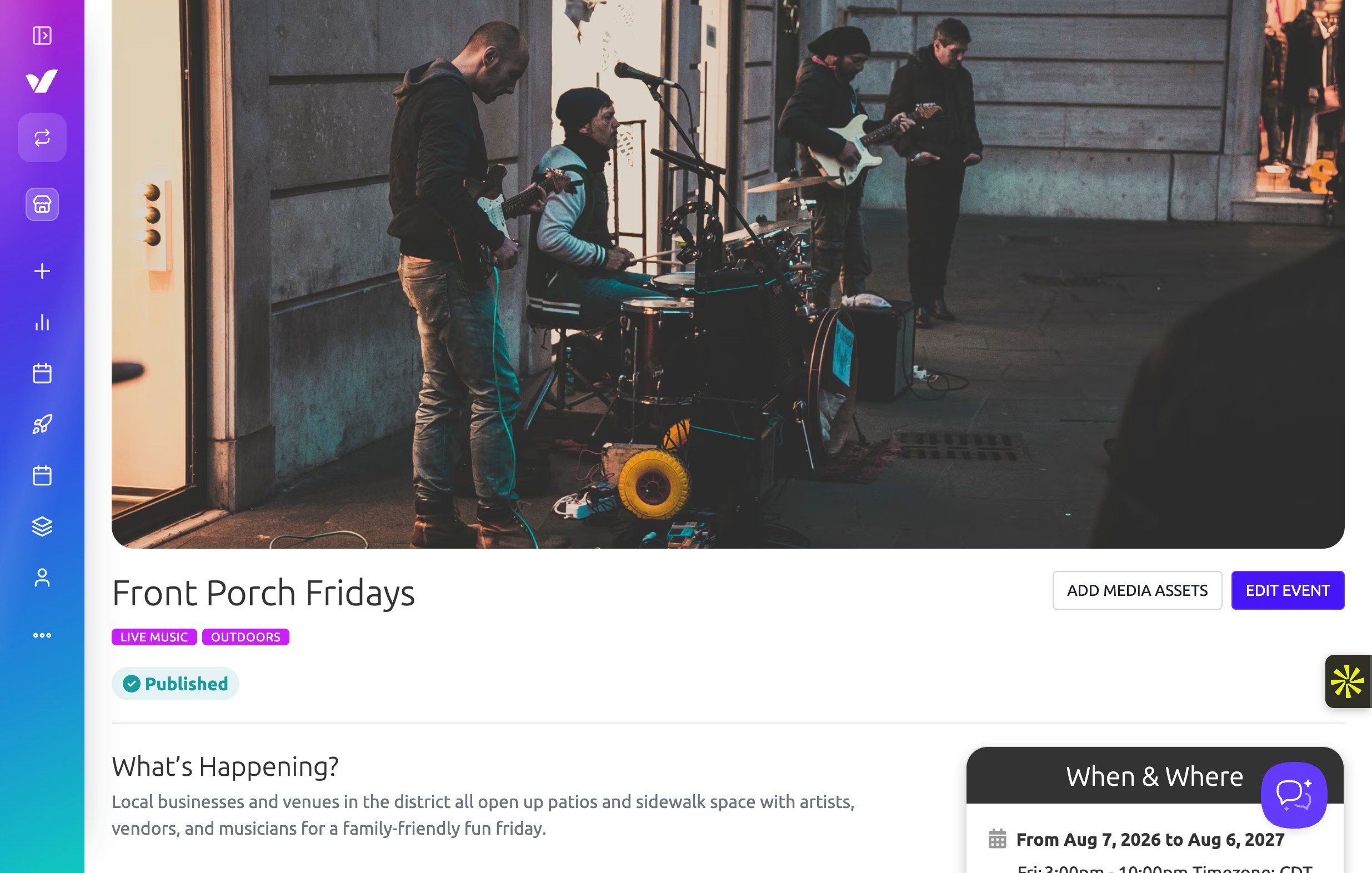
- Click Events in the left navigation and open the event you want to update.
- Click Edit Event.
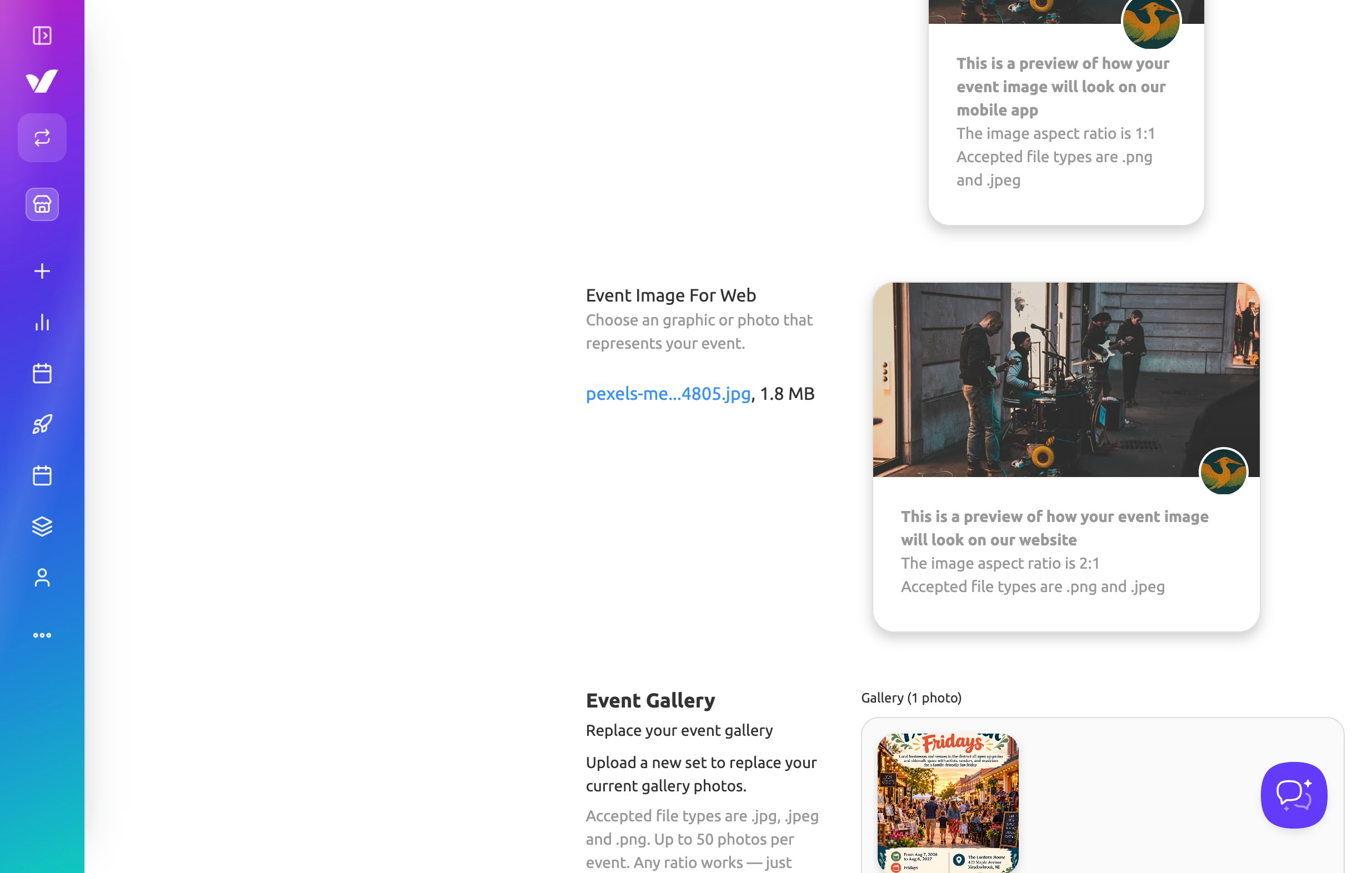
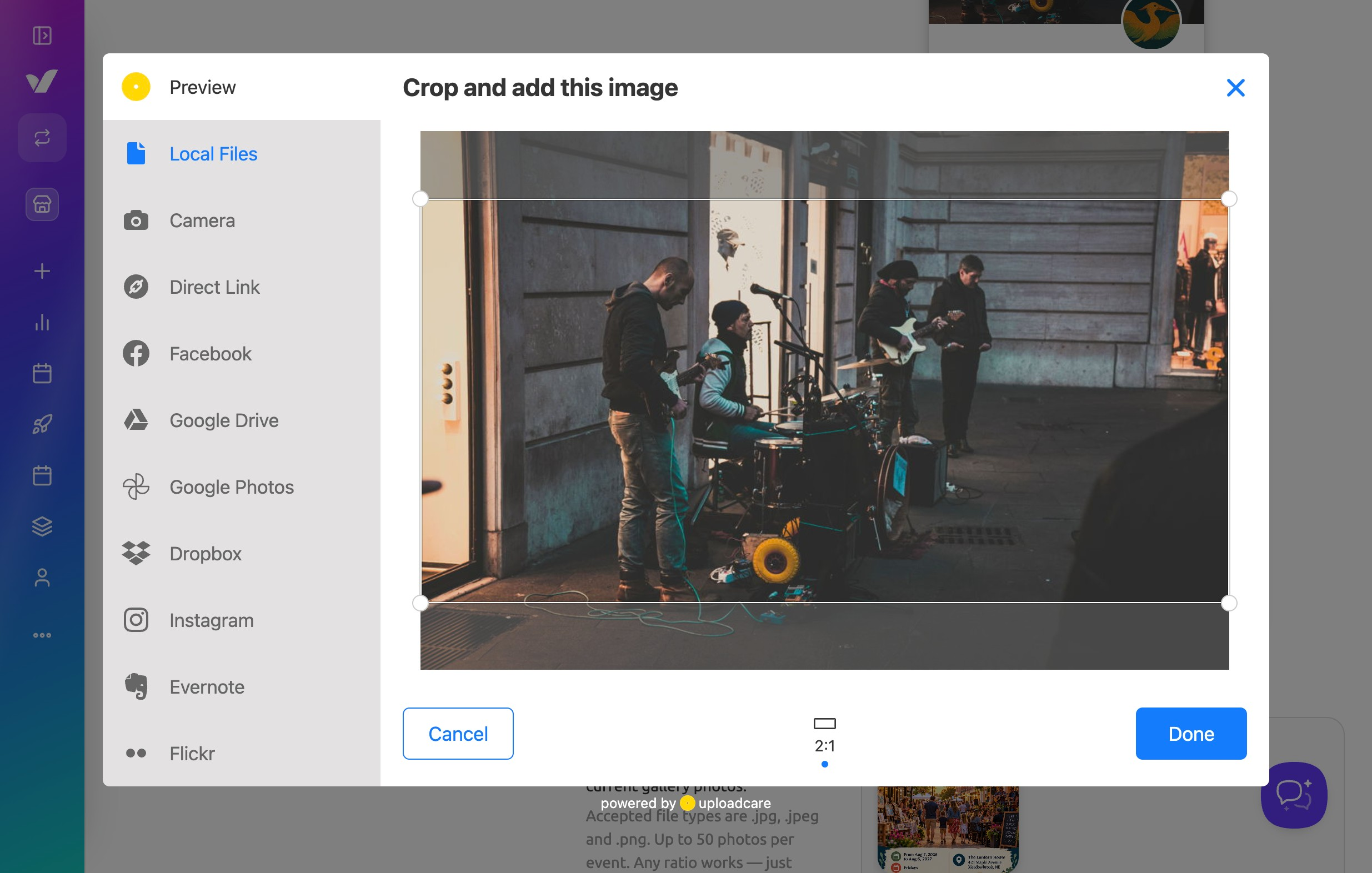
- Scroll to Event Image For Web. Click the file name link next to your current image (for example, photo.jpg) to open the image uploader.
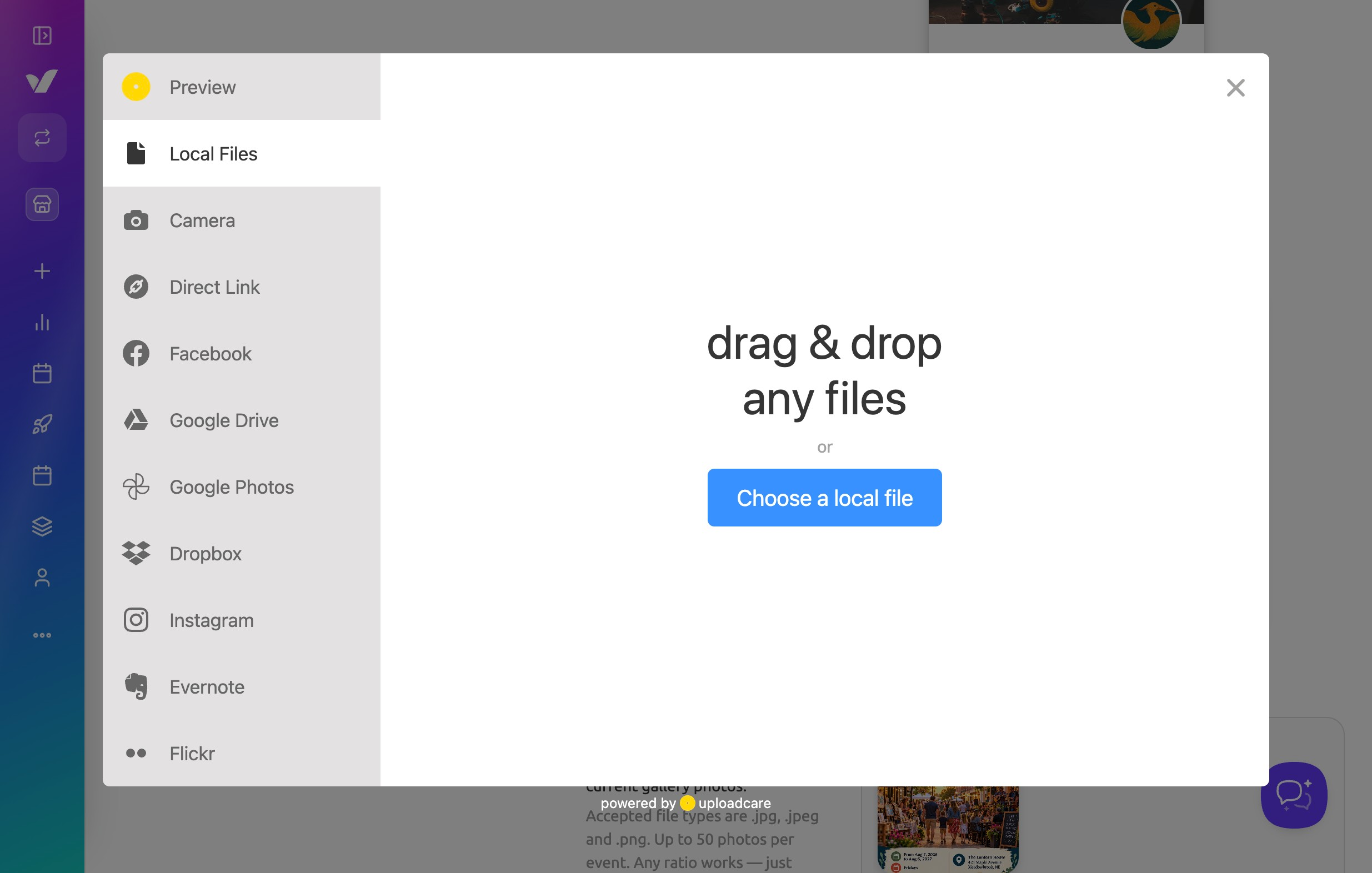
- Choose where your new image is coming from:
- From your computer: Click Local Files, then Choose a local file and pick your photo.
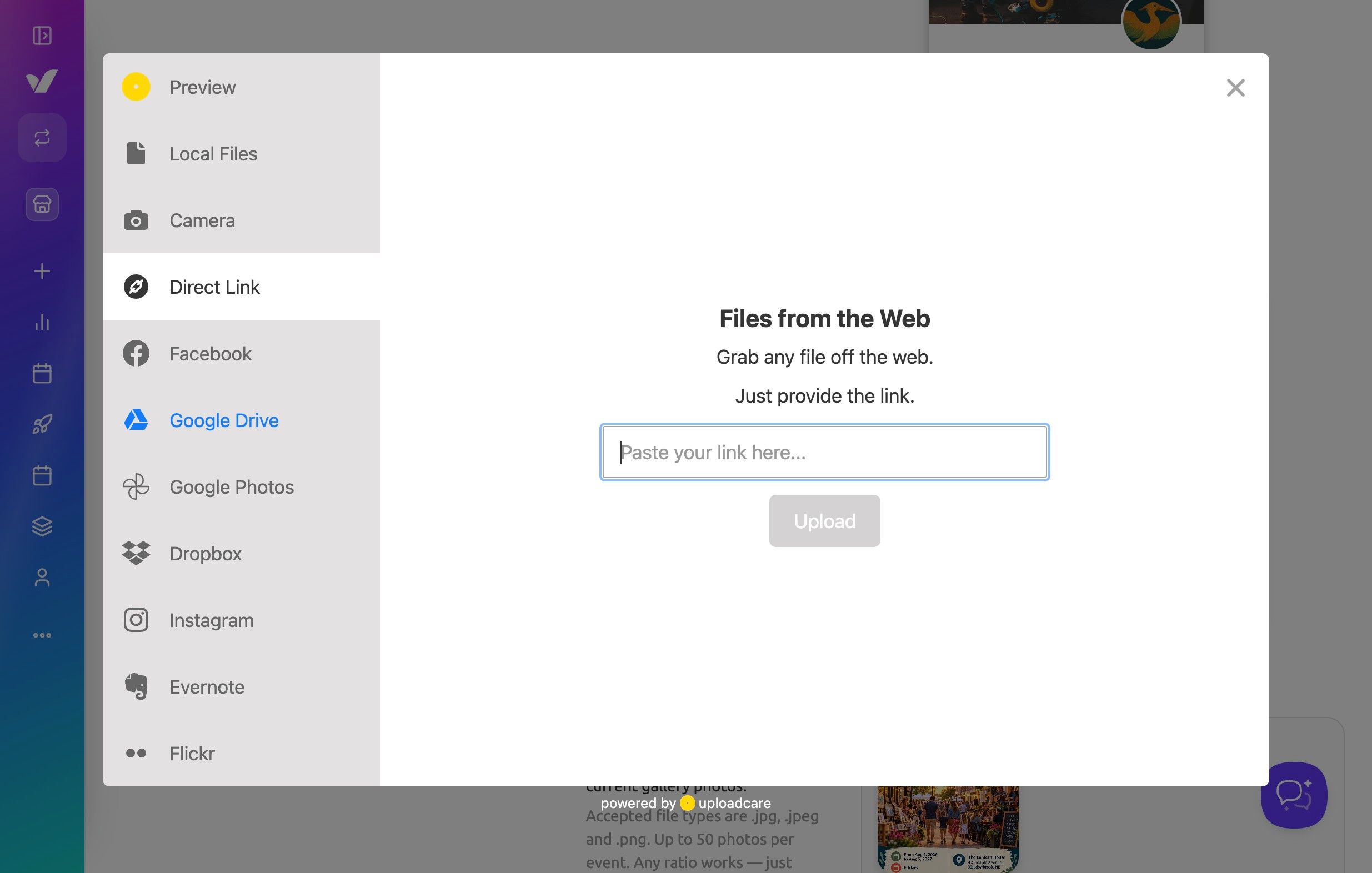
- From your website: Click Direct Link, paste the link to the image and click Upload.
- From another platform: Click Google Drive, Dropbox or the platform where you store your images, connect your account, and select the photo.
- Once the image is uploaded, crop it if needed and click Done to save it.
Tip: Check out Recommended Image Size to make sure your new image looks great everywhere your event is promoted. Want to add more images instead of replacing your main one? See Adding and Deleting Event Gallery Images.
Need help updating your image? Reach out to support@eventvesta.com and we'll be happy to help!